






.png)
PAGE CONTENTS
- How to add a customer
- Customer setup
- How to edit a customer
- How to delete a customer
- How to enforce 2FA for a customer
- How to suspend a customer
How to add a customer
1. On the Overview page, scroll down to the All Customers table. From the Actions dropdown menu, select Add Customer.
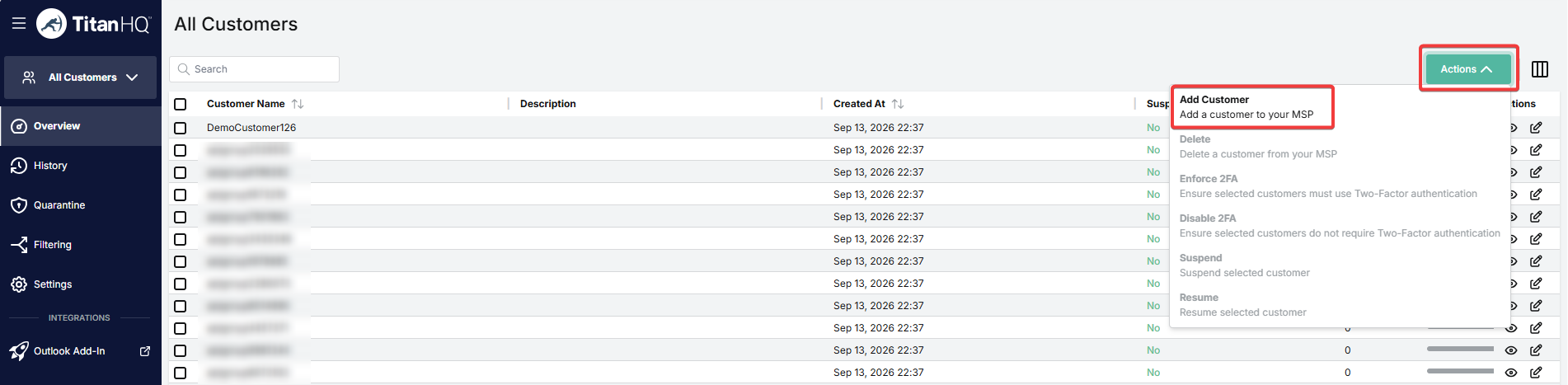
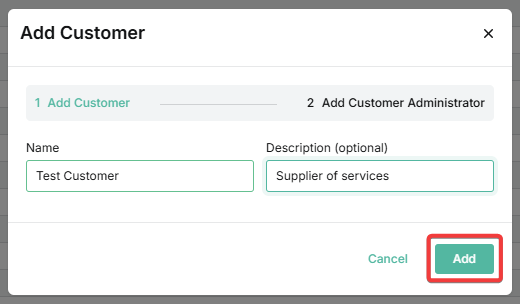
2. Enter the customer name and optional description, then click Add.
3. Enter the details for this administrator.
- Setting Read-only Administrator to Yes means this administrator can see the full interface and all reporting but cannot make changes. Whenever a user is logged in as a Read-only Administrator, a banner indicating this will be shown for the duration of their session.

- Setting Link Lock Admin to Yes means this administrator can enable and manage Link Lock.
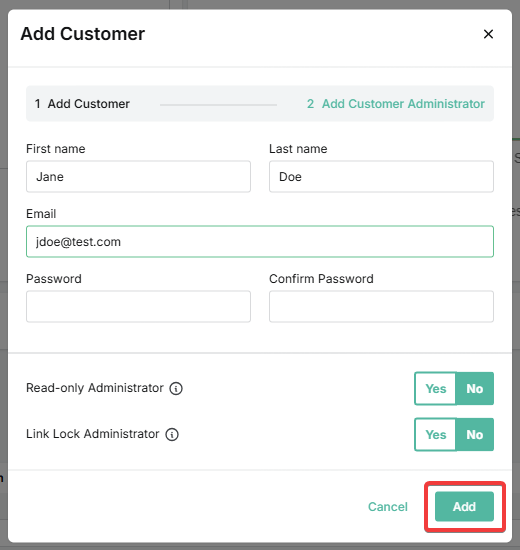
4. Click Add. The new customer will appear in the table.
Note:
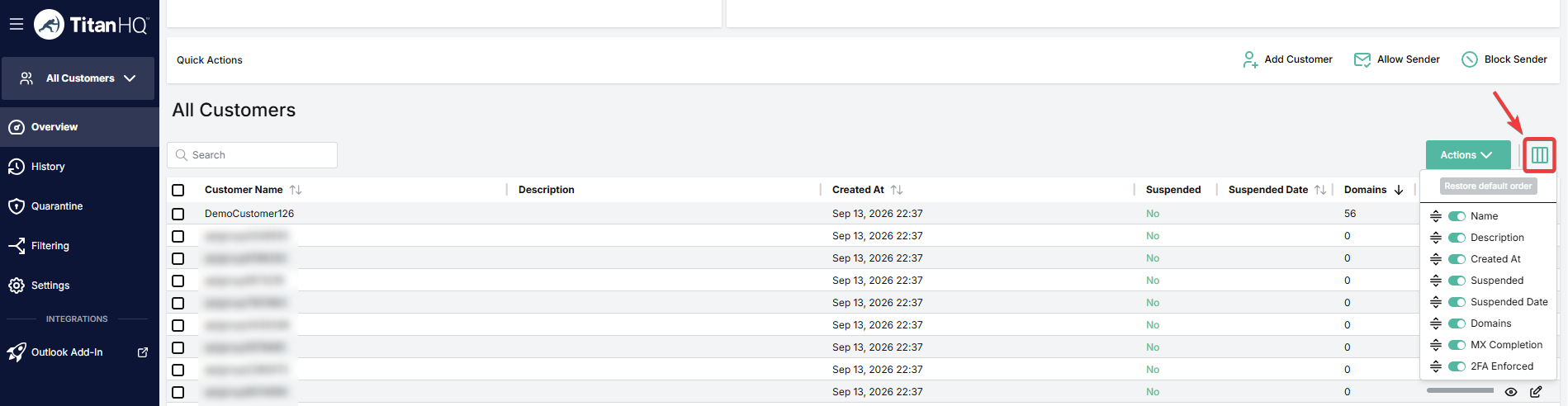
- You can customize the table columns by clicking on the columns icon.
- Additional administrators can be added at the customer level later by going to Settings > Administrators.
Customer setup
After a customer is added to SpamTitan, the steps in Customer setup need to be completed before the customer can start filtering their email. This setup can be done in the customer view by either an MSP Admin or a Customer Admin.
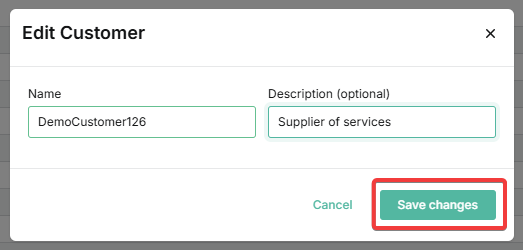
How to edit a customer
1. Locate the customer in the table. You can also use the search field.
2. In the Actions column, click on the edit icon.

3. Update the details as needed and click Save changes.
How to delete a customer
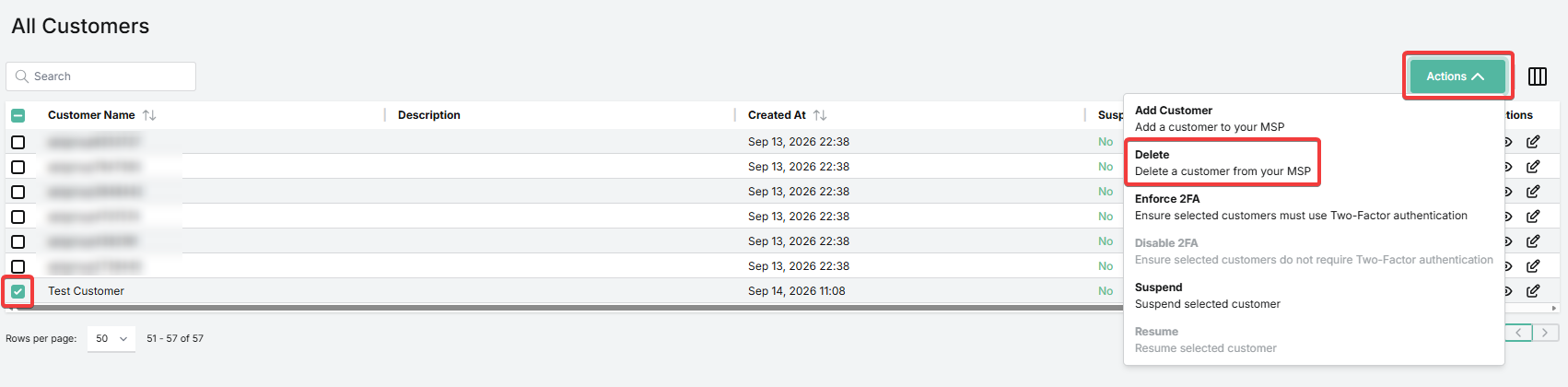
1. Locate the customer in the table. You can also use the search field.
2. Check the box to the left of the entry for this customer.
3. Go to Actions > Delete.
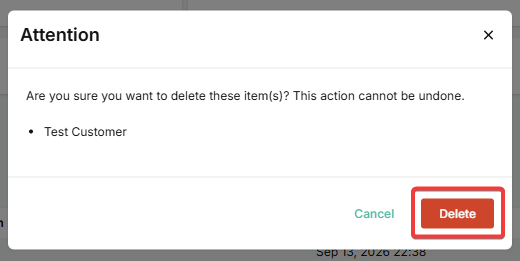
4. Click Delete to confirm.
How to enforce 2FA for a customer
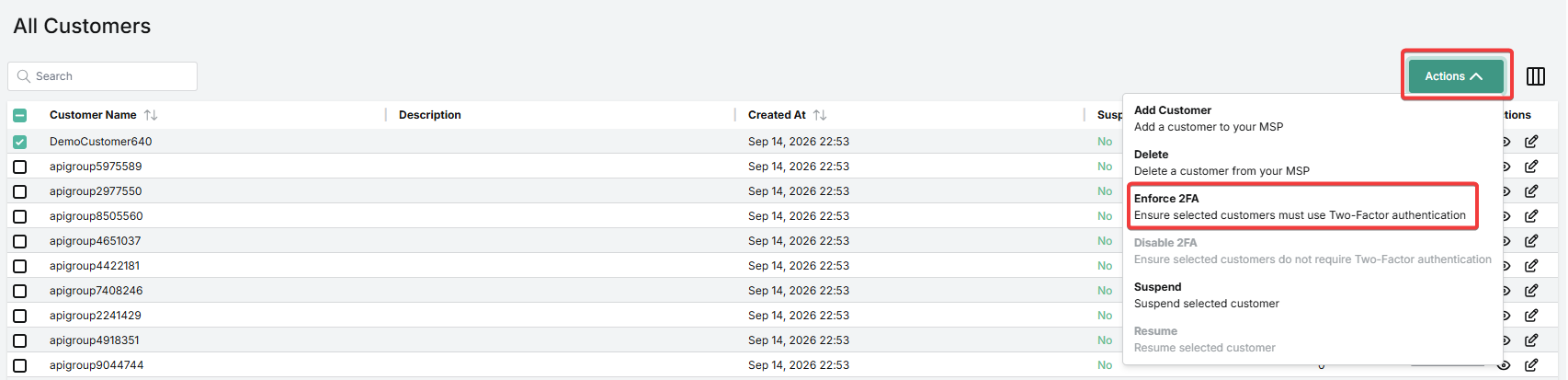
1. Locate the customer in the table. You can also use the search field.
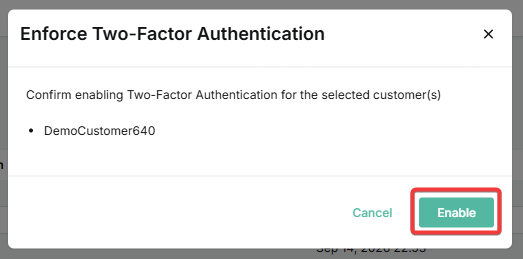
2. Go to Actions > Enforce 2FA.
3. Click Enable to confirm.
How to suspend a customer
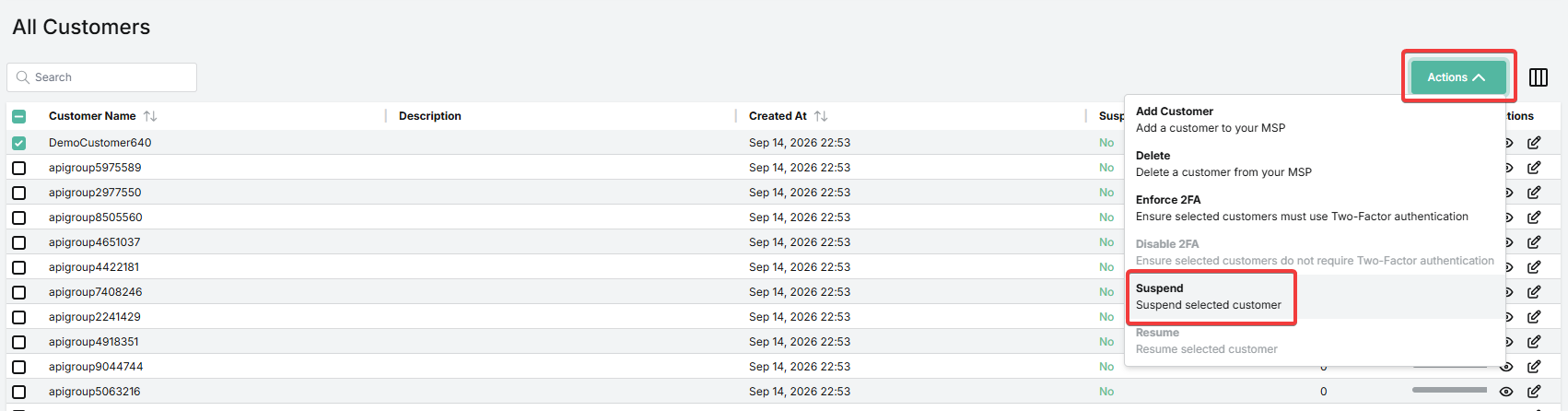
1. Locate the customer in the table. You can also use the search field.
2. Go to Actions > Suspend.
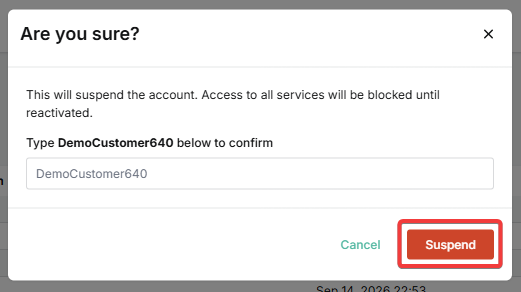
3. Enter the customer name to confirm that you want to proceed. Then click Suspend.
For more information, see How to suspend or resume a customer account.
 1.png)