






.png)
With the Microsoft Outlook Add-in reporting tool, you have the ability to report suspicious emails directly from your Outlook client and send them to Microsoft. By following the steps below, you can also customize M365 to send copies of the reported mails to a dedicated mailbox, which forwards them to SpamTitan for improved analysis.
Important
If you are using several CyberSentriq products, such as PhishTitan, then you already have the TitanHQ reporting tool in your M365 Outlook client and you do not need to customize the M365 Outlook Report Add-in for SpamTitan.
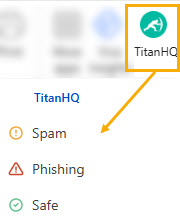
If this is the case, it is suggested that you use the TitanHQ reporting tool in Outlook instead of the Microsoft one. See Disable M365 Outlook Report Add-in for details on how to hide the M365 reporting tool in your Outlook client.
To customize M365 to send copies of reported emails directly from your Outlook client to SpamTitan, follow the steps below:
Create a Shared Mailbox: To receive copies of reported mails in a mailbox on your server.
Create an Exchange Connector. To forward reported mails from your mailbox to a specified SpamTitan server.
Create an Exchange Rule. To intercept reported mails and send them to the Exchange Connector.
Configure Microsoft Defender. To allow Exchange to send reported mails to a shared mailbox.
Note
The instructions below are for tools that are not owned or managed by TitanHQ and are only intended as a guideline to help you. As such, the information may be subject to change without us knowing.
If you notice anything incorrect, please email docs@titanhq.com and let us know.
In order to send copies of reported mails from your Outlook client to SpamTitan, you'll first need to set up a dedicated mailbox to receive the mails.
Log in to Microsoft 365 admin center and in the left navigation menu, select Show All > Exchange.
In the Exchange admin center tab that opens, go to the left navigation panel, and select Recipients > Mailboxes. Select Add a shared mailbox.
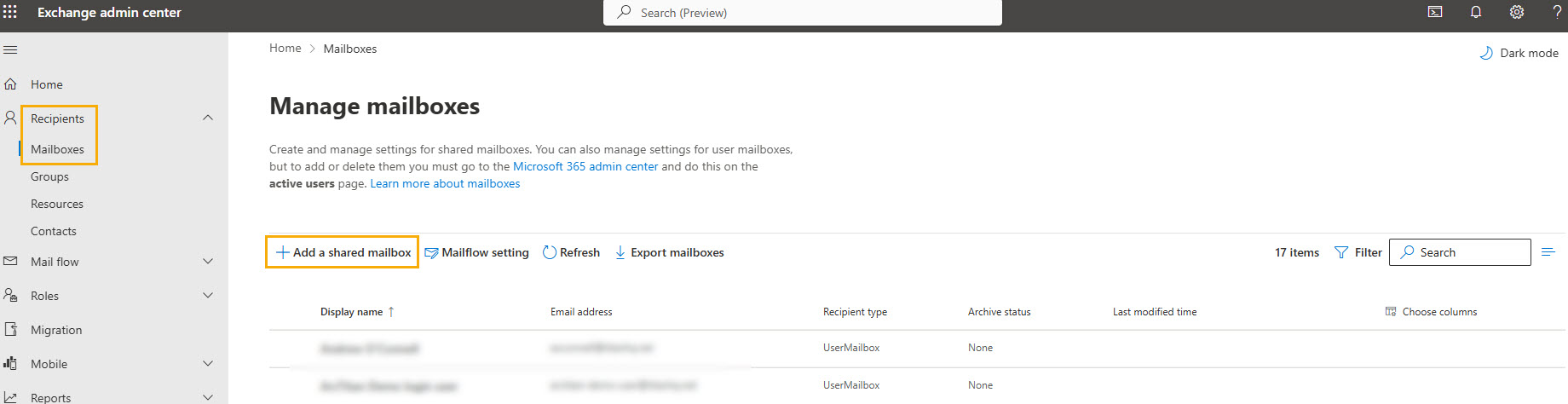
In the pop-up window, complete the following fields:
Display Name: Enter a name for the shared mailbox.
Email address: Enter the prefix for the email address, which is report-email-cybersentriq. Then select the domain from the Select Domain dropdown menu.
Alias: This field is optional and can be left empty.
Select Create.
Next, create an Exchange Connector.
After you've created a shared mailbox, you'll need to create an Exchange Connector to forward copies of reported mails to a specified SpamTitan server.
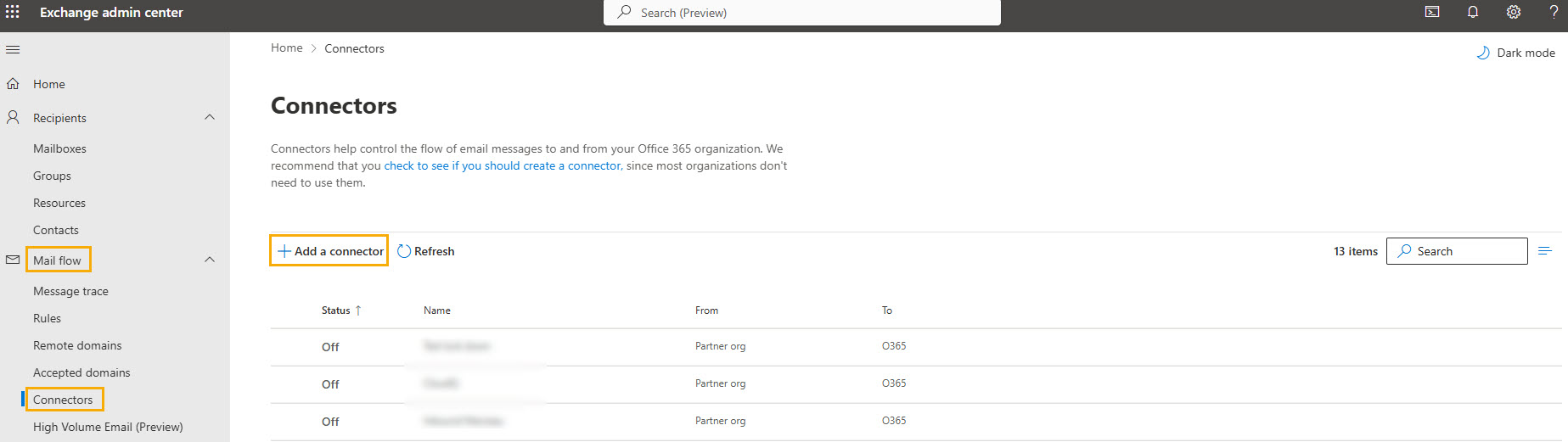
In Exchange admin center, go to the left navigation menu, and select Mailflow > Connectors. Select Add a connector.
In the New connector window, select Office 365 under Connection from. Select Your organization's email server under Connection to.
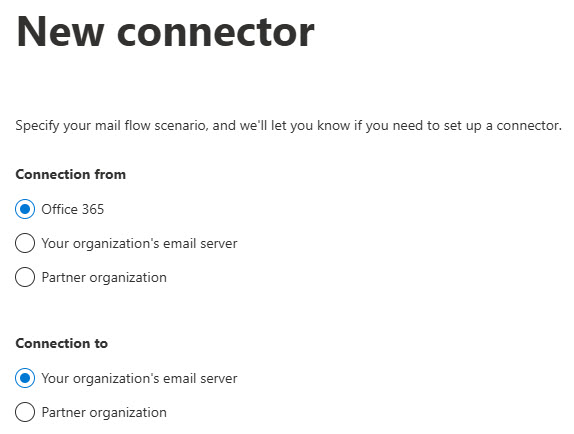
Select Next.
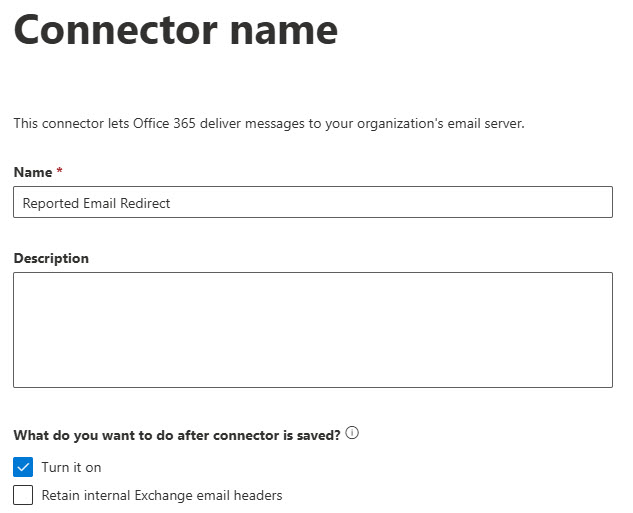
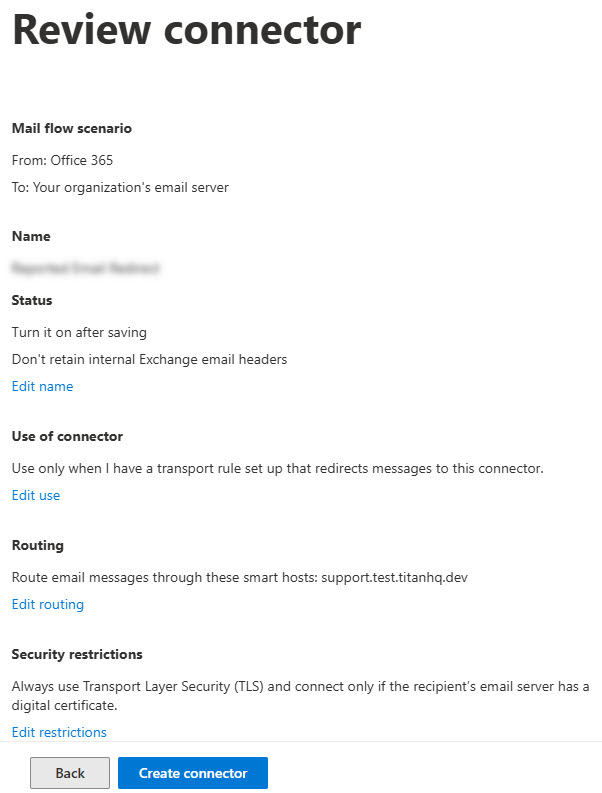
In the Connector name window, enter the name for your connector, for example, Reported Email Redirect. Add an optional description.
Under What do you want to do after connector is saved?, select Turn it on.
Select Next.
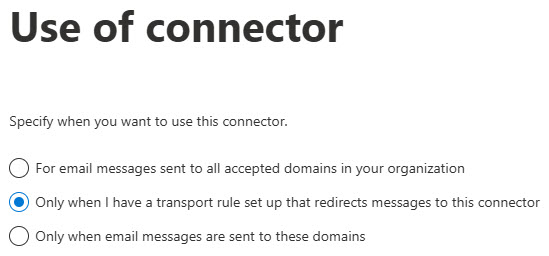
In the Use of connector window, select Only when I have a transport rule set up that redirects messages to this connector.
Select Next.
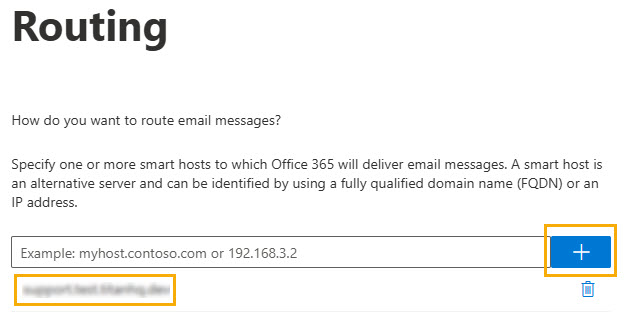
For Routing, enter the MX FQDN for the SpamTitan service you are using. This is usually one of the MX records for your email domain, for example, eu1-smtp-mx1.titanhq.com. Select +.
Select Next.
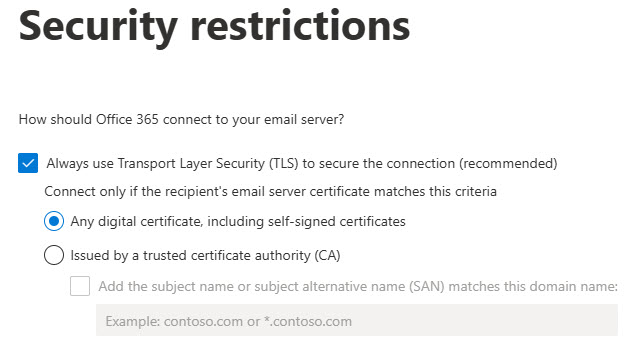
In the Security restrictions window, use Always use Transport Layer Security (TLS) to secure the connection (recommended), which is selected by default. Select Any digital certificate, including self-signed certificates.
Select Next.
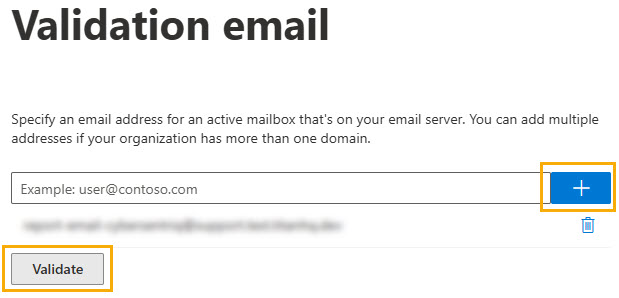
In the Validation email window, enter an email address for an active mailbox on your email server; for example, report-email-cybersentriq@ yourdomain.com and select +. Select Validate.
Select Next.
Review the connector information, and select Create Connector.
Select Done.
Next, create an Exchange Rule.
This section explains how to set up an Exchange Rule that will identify the reported mails and send them to the Exchange Connector.
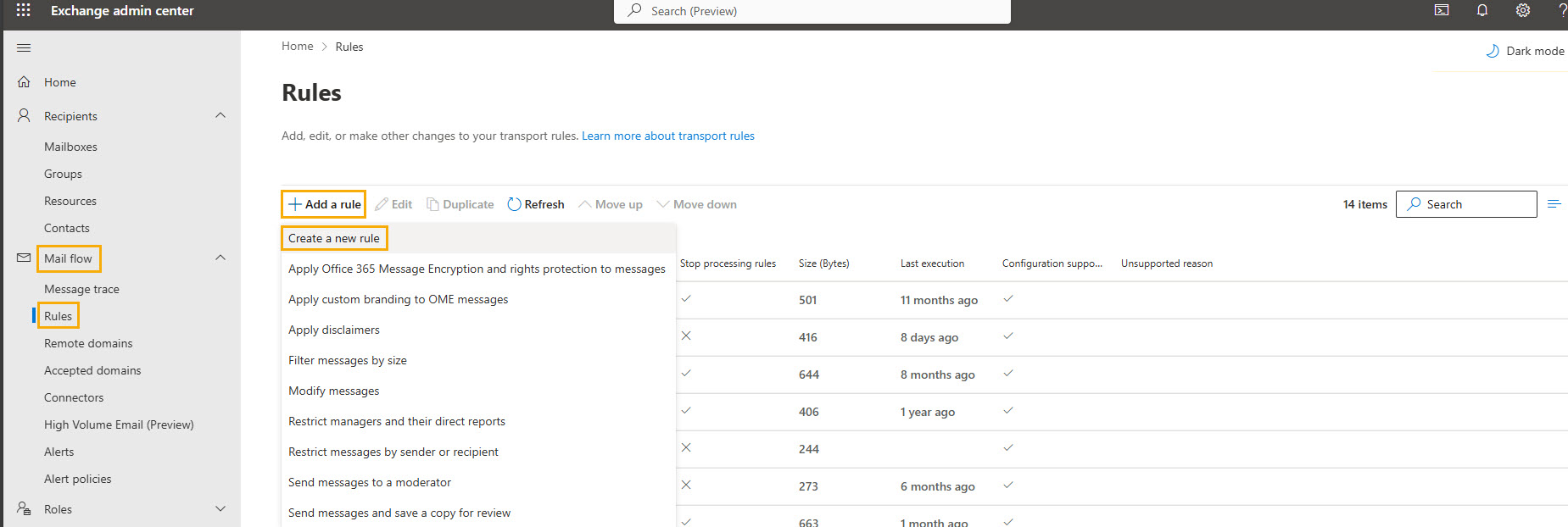
Go to Exchange admin center and in the left navigation menu, select Mailflow > Rules. Then select Add a rule > Create a new rule.
In the Set rule conditions window, complete the following fields:
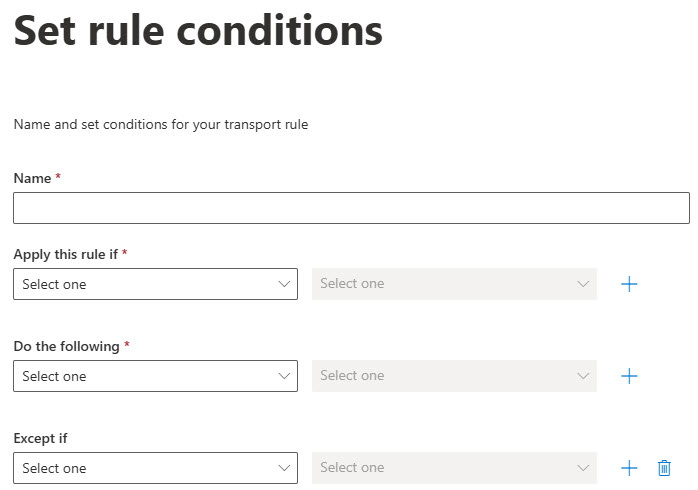
Name: Enter the name for your rule; for example, Reported Email Redirect.
Apply this rule if: From this dropdown menu, select The recipient. In the Select One dropdown menu beside it, select is this person. In the pop-up window, search for the name of the shared mailbox you created, which is report-email-cybersentriq, and select Save.
Do the following: From this dropdown menu, select Redirect the message to. In the Select One dropdown menu beside it, select the following connector. In the pop-up window, select the connector you created in Create an Exchange Connector, and select Save.
Except if: Leave this section empty.
Select Next.
In the Set rule settings window, use the default Rule mode option of Enforce. From the Match sender address in message dropdown menu, select Header or envelope.
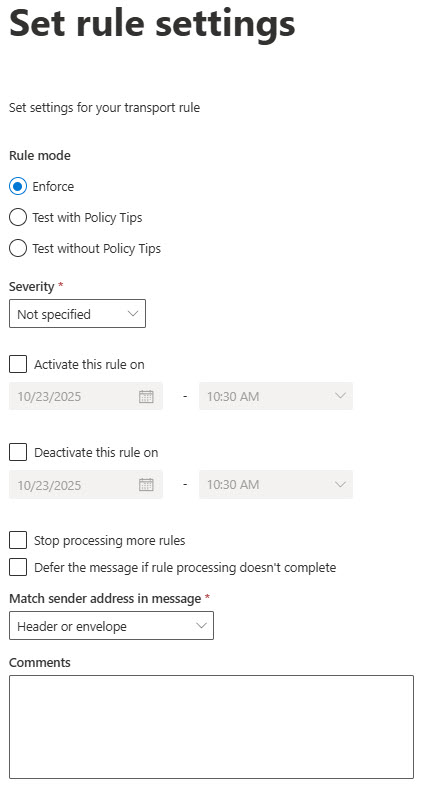
Select Next.
Review the information you've entered, and select Finish. And when rule is created successfully, select Done.
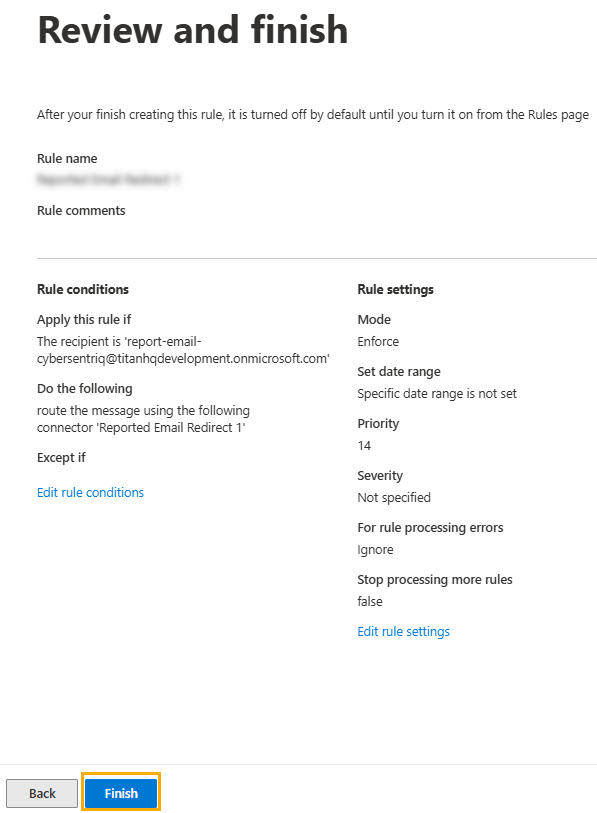
Now that you've created the rule, you'll need to enable it.
Go to the Rules list, and locate the new rule at the bottom of the list. Click on the rule name, and n the pop-up window, select the Enable or disable rule toggle. This will change the status to Enabled. Close the pop-up window.
Next, you'll need to configure Microsoft Defender.
Follow the steps below to allow Exchange to send copies of reported mails to a shared mailbox.
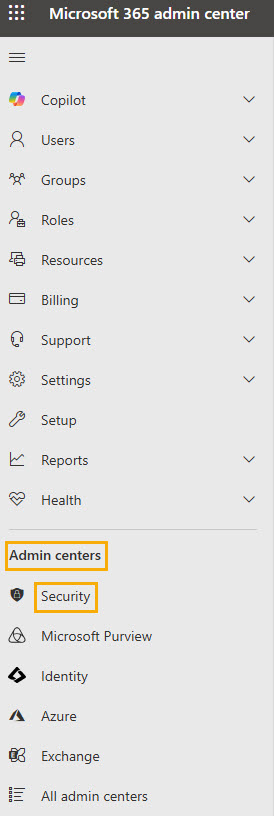
Go to Microsoft 365 admin center and in the left navigation menu, select Admin centers > Security.
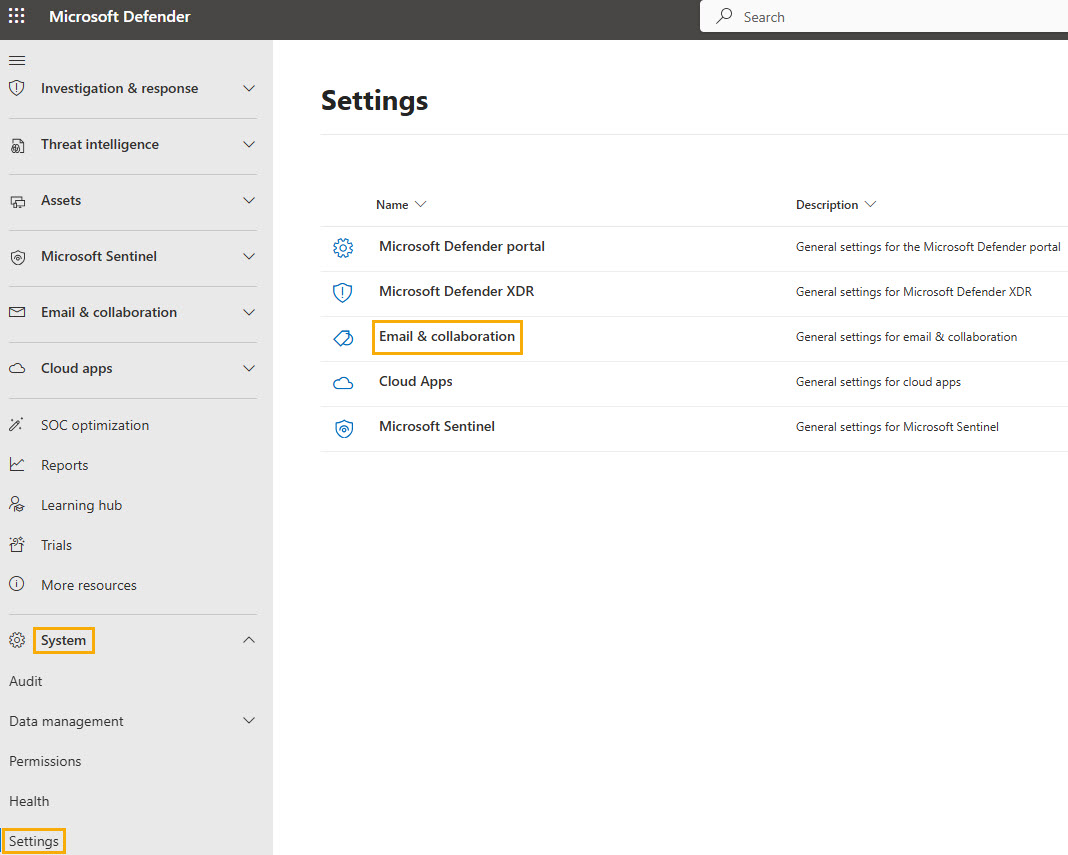
Select System > Settings, and then Email & collaboration.
In the left panel, select User reported settings, and then scroll down to Reported message destinations. In the Add an exchange online mailbox to send reported message to, enter the shared mailbox you created, which is report-email-cybersentriq.
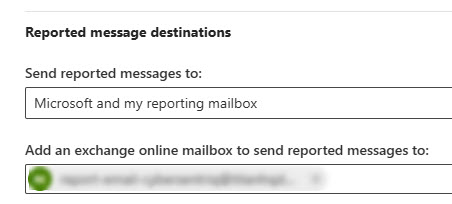
Select Save.
Now when you use your Outlook client to report suspicious mails, copies of the reported mails will also be sent to your SpamTitan server for analysis.
 1.png)