






.png)
When a new domain is added, a default policy is created for that domain in Policies > Domain Policies. Follow the steps below to view and edit a domain policy.
Under Domain Policies, locate the policy you want to edit and click on the edit icon in the Actions column.
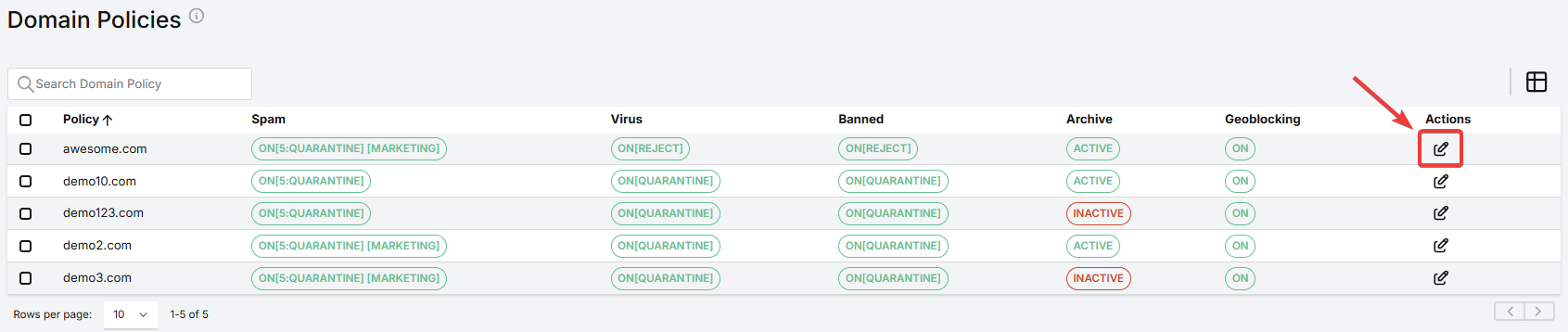
This will take you to the page for the specific policy, from where you can edit the policy's settings. Read more about the different settings below. When you're ready, click Save Changes.
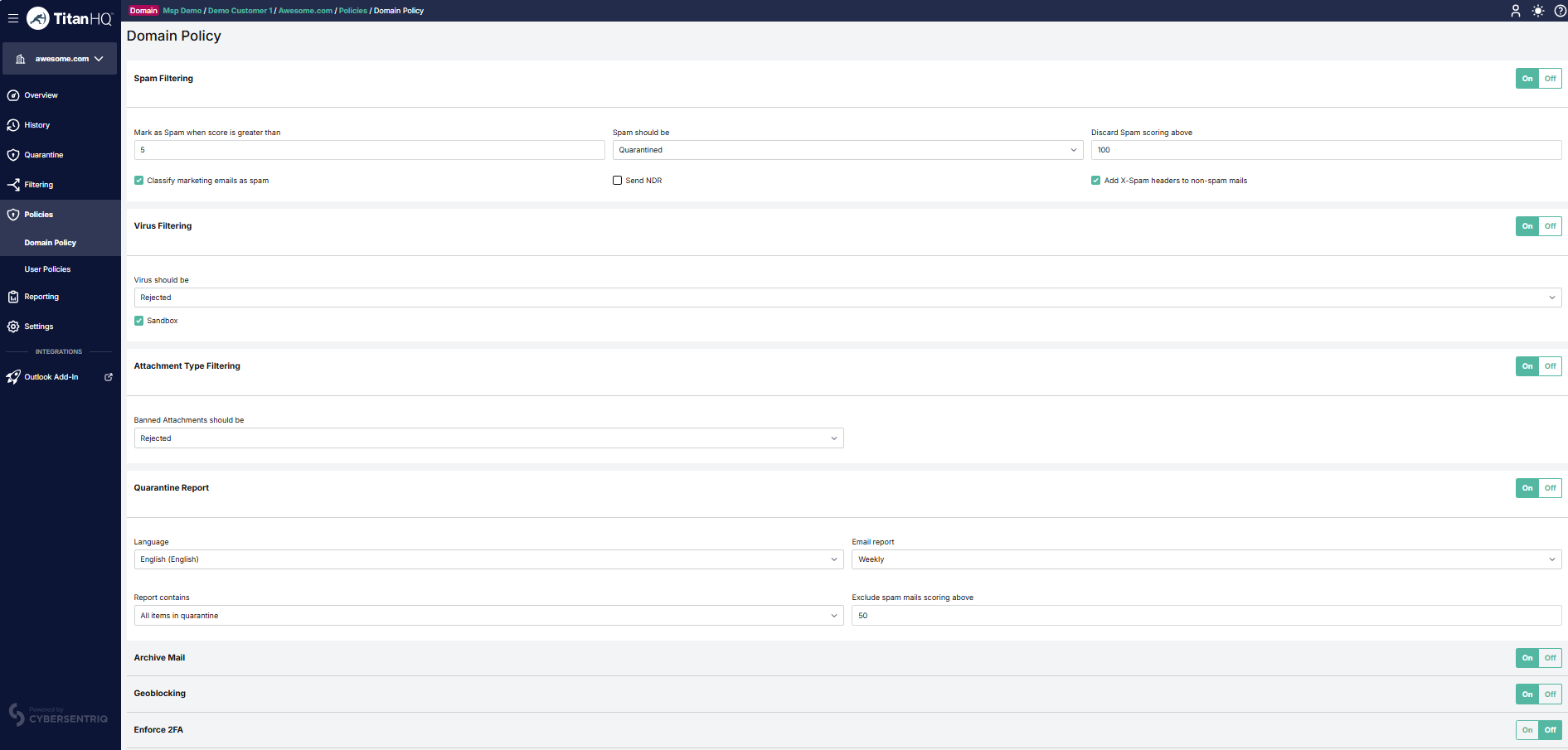
Spam Filtering:
Select On or Off to enable or disable spam filtering for this domain (default: On).
- Mark as Spam when score is greater than: This is the scoring threshold above which mail is considered to be spam (default: 5).
- Spam should be: Select what should happen when an email is identified as spam.
Option
Description
Quarantined
The email is accepted, but quarantined and appears in the user's quarantine reports. It can be released from quarantine if deemed to be a false positive.
Passed (Tagged)
The message is analyzed as normal and passed to the end recipient(s). Headers are added to allow filtering on the back end. Selecting Passed (Tagged) bypasses allow and block lists and delivers an email to the user mailbox.
Rejected
The message is rejected. The default action is to quarantine all messages that exceed the spam threshold.
- Discard Spam scoring above: Emails scoring above the specified score are not quarantined.
- Send NDR: If checked, a Delivery Status Notification (DSN) is generated if a mail is quarantined. Note that DSNs can cause backscatter, which can result in a server IP being blocked.
- Add X-Spam headers to non-spam mails: If enabled, additional headers are added to the message that indicates the result of the spam analysis. The following headers are added:These headers are only added to inbound messages.
- X-Spam-Status: Shows if a message exceeded the spam threshold and the score is achieved. The rules that were fired by the anti-spam engine are also listed.
- X-Spam-Score: Shows the spam score achieved.
- Classify marketing emails as spam: If this checkbox is enabled, marketing emails are classified as spam with a score of 7.01. These emails will then be handled based on your selections in the fields Mark as Spam and Spam should be.
Virus Filtering:
Select On or Off to specify if virus filtering is enabled or disabled for this domain (default: On).
- Virus should be: Select the action to take when an email is identified as containing a virus:
Option
Description
Quarantined
The email is accepted, but quarantined and appears in the user's quarantine reports. It can be released from quarantine if deemed to be a false positive.
Passed (Tagged)
The message is analyzed as normal and passed to the end recipient(s). Headers are added to allow filtering on the back end.
Rejected
The message is rejected. The default action is to quarantine all messages that exceed the spam threshold.
- Sandbox: Select to enable sandboxing (default: enabled).
Attachment Type Filtering:
Select On or Off to specify if attachment filtering is enabled or disabled for this domain (default: On).
If enabled, the customer-level message attachment policy is applied to messages sent to this domain. Go to Filtering > Attachments to configure attachment filtering settings.
- Banned Attachments should be: Select the option you want when a banned attachment is identified:
Option
Description
Quarantined
The email is accepted, but quarantined and appears in the user's quarantine reports. It can be released from quarantine if deemed to be a false positive.
Passed (Tagged)
The message is analyzed as normal and passed to the end recipient(s). Headers are added to allow filtering on the back end.
Rejected
The message is rejected. The default action is to quarantine all messages that exceed the spam threshold.
Quarantine Report:
Select On or Off to specify if a quarantine report is generated for each recipient in this domain when they have their email quarantined.
- Language: Select the language you want reports to be written in.
- Email report: Select the frequency with which quarantine reports will be sent. Reports may be generated daily, every weekday, weekly, monthly or never.
- Report contains: A quarantine report can contain a list of all items that are currently quarantined for each user or new quarantined items since the last report was generated (default). Both of these can be viewed with or without the virus-infected emails included.
- Exclude spam mails scoring above: Spam that scores above a certain threshold (usually 5) is deemed spam. In quarantine reports, users generally want to view email that just scored just above the spam score threshold so they can look for any false positives.
Archive Mail:
Select On or Off to specify if all clean messages received by this domain are stored in history (default: Off). Email stored in history is searchable from History in the side-bar.
Geoblocking:
Select On or Off to specify if geoblocking is enabled at a global level (default: disabled). Once enabled, geoblocking can be managed at the customer and domain levels. Each level can apply its own geoblocking rules, with rules being inherited from a higher level by default. If applied, a lower level rule supersedes a higher level rule. Read more in Geoblocking.
Enforce 2FA:
To enforce mandatory 2FA on all domains, switch the toggle On. Turn it Off to make 2FA optional for users in those domains. Read more in 2FA for Domains and Users.
 1.png)